
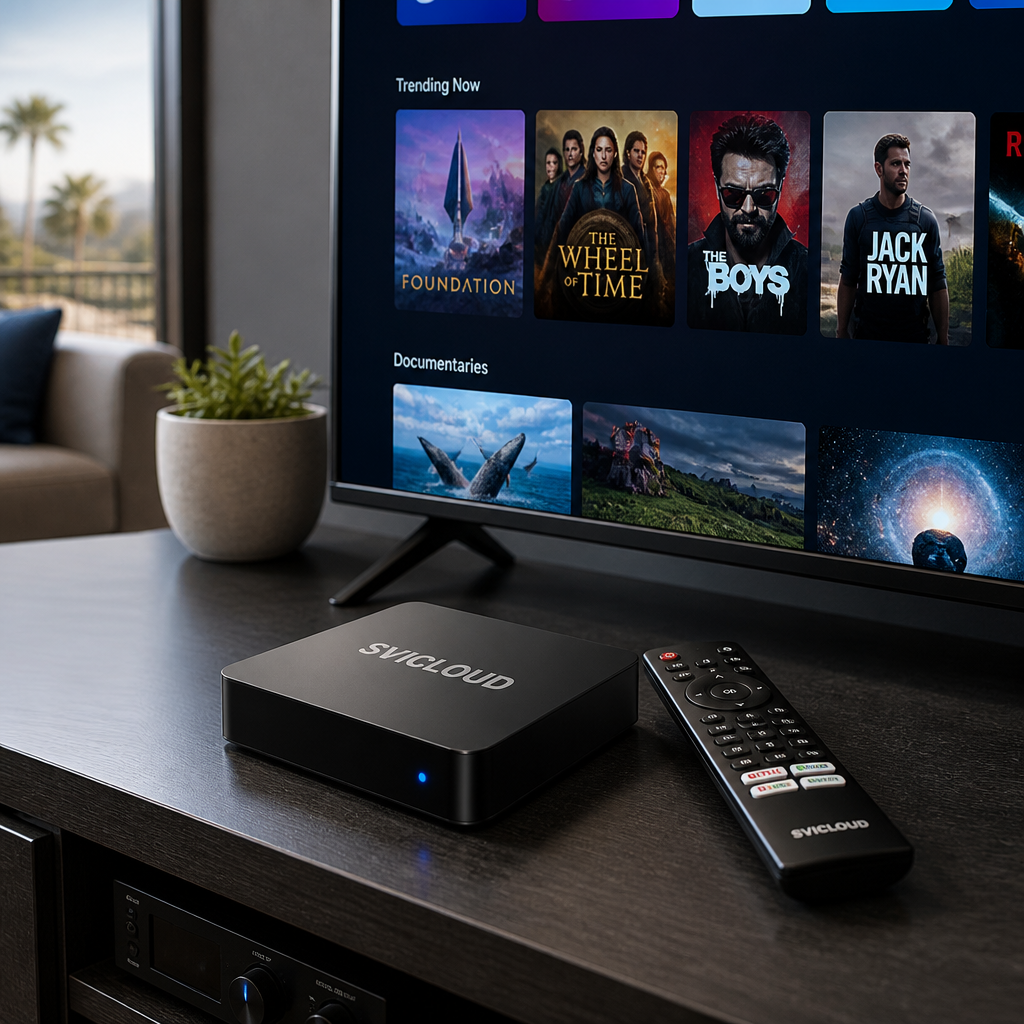
How to Download yogurt tv on a XiaoYun Box? Installation, Updates, and Common Failure Causes
If you are looking for how to download "yogurt tv on a XiaoYun Box," this article organizes the process using a general and relatively safe setup approach: including pre-installation checks, possible installation methods, things to watch for during updates, and common reasons for failure.
First, one important note: this article does not use official yogurt tv download instructions as its basis, so it will not present a specific download page, store entry, or actual screen flow as a fixed fact. The safer approach is to treat this as an Android TV box app installation troubleshooting guide. If you already have yogurt tv’s official page, official announcement, or a trusted installation source, combining that with the steps here will usually make success more likely.
If you are also evaluating newer XiaoYun Box devices, you can refer to the SVICLOUD 15P official product page. This article still focuses on general guidance and does not assume that yogurt tv must exist in a specific store, must provide an APK, or must support every XiaoYun Box version.
First, confirm: which download method are you looking for?
When searching for "how to download yogurt tv on a XiaoYun Box," the real situation often falls into one of the following:
1. You want to search and install it in the box’s built-in app environment 2. You already found a download page, but are not sure whether it can be installed 3. You have an APK file and want to know how to install it 4. You installed it before and now want to update it 5. You installed it successfully, but it won’t open or playback is not smooth
Different situations require different handling, but the basic principles are usually the same:
- First confirm whether the source is trustworthy
- Then confirm the device and system status
- Test the app after installation
- If it fails, check network, storage, permissions, and version compatibility in order
5 checks to do before installing
Many installation failures are not necessarily caused by the app itself; often, the box’s current system state is not ready yet.
1. Confirm the box can enter the home screen normally
If your XiaoYun Box often gets stuck after booting, returns to the desktop, or won’t open the settings page, do not rush to install a new app. In this situation, even if the download succeeds, problems are likely to occur later.
It is recommended to first confirm:
- Whether the home screen can be entered stably
- Whether the remote control works normally
- Whether the settings page opens smoothly
- Whether the system keeps showing error messages
2. Confirm that the network is working
Whether you are installing from a store or downloading an installation file, the network matters. If the connection is unstable, common outcomes include:
- Download interruption
- Incomplete file
- Update getting stuck
- Abnormal behavior on first launch after installation
At minimum, confirm the following:
- Wi‑Fi is connected properly
- Web pages or other apps open normally
- If wired networking is available, whether it is more stable
3. Confirm whether there is enough storage space
Just because the TV box can boot does not mean it has enough space to install apps. If storage is too full, you may see:
- Download completes but installation fails
- Update stops halfway
- Installation succeeds but startup behaves abnormally
Check the following first:
- Remaining storage space
- Whether there are unused apps that can be removed
- Whether there are many old installation files or cached files
4. Confirm that the system time and basic settings are normal
This is often overlooked, but if the device time is out of sync or the system settings are abnormal, some download, login, or verification processes may fail.
Recommended checks:
- Date and time are correct
- Language and region settings are not obviously wrong
- The device is not stuck in a partially completed initialization state
5. Check whether the system needs an update first
A system update does not mean it will solve every problem, but in the following cases, checking for updates first is reasonable:
- Installation keeps failing
- The app cannot open after installation
- The update process keeps getting interrupted
- A message such as version not supported appears
How to download yogurt tv on a XiaoYun Box? Use this safer process
Because there are no first-hand installation instructions for yogurt tv, the following is a general download and installation process. You can apply it to yogurt tv or other Android TV-type apps.
Step 1: Confirm the source first; do not rush to install
The most important principle is: confirm the source first, then talk about downloading.
If an app has one of the following sources, it is usually more worth considering first:
- Official website
- Official announcement page
- Installation instructions provided by official customer service
- A trusted app store version
You should avoid:
- Downloads from unknown forums
- APK files repeatedly forwarded by others
- Download pages without version information
- Files marked as modified or cracked versions
The reason is simple: an unknown source may not only cause installation failure, but also create security and stability risks.
Step 2: Decide whether you are installing from a store or manually
Whether yogurt tv provides a store version or an APK must be based on its official information. You can first confirm which situation you are dealing with.
Method A: If there is a trusted store version
If you can find the app in the box’s available app environment, the process is usually simpler. In general, it would be:
1. Open the app store or app platform 2. Search for the app name 3. Confirm the developer or source information 4. Tap install 5. Wait for completion and then open it to test
This method is usually easier for later updates and less likely to require manual permission settings.
Method B: If you have an APK installation file
If the official source provides an APK, or if you have obtained an installation file from a trusted source, common approaches include:
- Download directly on the box
- Download on a computer first, then transfer it to the box via USB
- Transfer it to the box through cloud storage and install it there
At this stage, it is recommended to check:
- Whether the file name is complete
- Whether the download was interrupted
- Whether the file looks obviously abnormal
- Whether the source page provides version and compatibility information
> Do not assume that a file is installable just because it finished downloading. Many installation failures happen because the file is actually damaged or the version is wrong.
Step 3: Enable installation permissions only when needed
If you are installing an APK manually, the Android system will usually request relevant permissions. This is a normal security mechanism.
In general, you can look for settings in this direction:
- Go to "Settings"
- Find "Security" or "Apps"
- Find the option related to "install unknown sources"
- Only enable installation permissions for sources you trust
- Turn it off again after installation if needed
Different Android versions and different box interfaces may use different names, but the logic is generally the same.
Things to note when setting permissions
- Only enable it for trusted sources
- Do not permanently allow all sources
- If you do not manually install apps often, turn the permission back off after installation
Step 4: Do a basic test after installation
Installation completion does not necessarily mean the app is usable. After opening it for the first time, it is recommended to test the following:
- Whether the app starts normally
- Whether the home page displays correctly
- Whether the remote control directional keys work
- Whether menu switching works properly
- Whether it closes unexpectedly right after login
During the first launch, some apps may need extra time to build cache or complete initialization, so if you see a loading screen, wait a bit before deciding whether it is truly stuck.
Step 5: Finally test playback or main functions
If the app’s main purpose involves media playback, after installation you can further check:
- Whether content loads smoothly
- Whether audio and video work normally
- Whether playback keeps buffering
- Whether quality switching works normally
- Whether returning to the previous page causes abnormal exits
If playback is not smooth, it is not necessarily an app problem; it may also be related to the network, device load, content source, or system version.
Already installed yogurt tv? How to update it?
If yogurt tv is already installed, the update method should still follow the app’s official instructions. Without official instructions, you can use a more conservative update approach.
First confirm the current version
Before updating, check the current version. This has several benefits:
- Helps determine whether an update is actually needed
- Makes it easier to compare when problems occur
- Makes it easier to describe the issue when asking support
You can usually find version information in the following places:
- The app’s settings or About page
- The system’s app information page
Common update methods
1. Update directly through the app environment
If the app was installed from an app store or platform, you can usually first check:
- Whether there is an update prompt
- Whether the store page shows an available update
- Whether the app itself provides an update entry
2. Reinstall the newer installation file
If it was originally installed manually, updating may involve:
- Directly overwriting the installation
- Being unable to overwrite and needing to remove the old version first
- Conflicts between the new and old versions
A safer approach is:
1. Save your login information first 2. Confirm the new version source is trustworthy 3. Remove the old version if needed 4. Download and install again 5. Log in again and test after completion
Things to check after updating
After the update is complete, at least confirm:
- Whether the app opens normally
- Whether the account can log in normally
- Whether the main functions work
- If it is a media app, whether playback is normal
If the update makes it less stable, first try:
- Restarting the device
- Clearing the app cache
- Reinstalling
- Checking whether it is a version compatibility issue
Common reasons why downloading yogurt tv on a XiaoYun Box fails
Below are the most common and easiest-to-check causes.
Reason 1: The source is incorrect or untrustworthy
This is the most common situation. Even if the link opens, that does not mean the installation file is suitable for your box.
Common problems include:
- Not a version suitable for TV boxes
- Incomplete file
- Unclear version information
- File repackaged by a third party
Reason 2: Not enough storage space
When storage is low, common symptoms include:
- Installation fails halfway
- Update cannot be completed
- Installation succeeds but opens abnormally
It is recommended to clean up:
- Unused apps
- Old APK files
- Large amounts of temporary data
Reason 3: Unstable network
Downloading, updating, logging in, and first loading may all be affected.
You can try:
- Moving closer to the router
- Reducing the number of devices using the network at the same time
- Restarting the router and trying again
- If supported, switching to a wired connection for testing
Reason 4: Installation permissions were not enabled properly
This is especially common when manually installing an APK. It usually appears as:
- Tapping install does nothing
- The system says installation is not allowed
- It keeps getting stuck at permission restrictions
In this case, go back to the settings page and confirm whether the option related to "unknown source installation" is enabled appropriately.
Reason 5: Version and system are incompatible
Possible situations include:
- The app is too old for the newer system
- The app is too new for the older system
- Mixing mobile and TV versions
- The installation file does not match the device environment
Common symptoms:
- App crashes on launch
- Black screen
- Login issues
- Wrong screen aspect ratio
- Menus cannot be operated
Reason 6: The installation file is damaged
Even if the file appears to have finished downloading, that does not mean it is intact.
Common signs include:
- Tapping the installation file does nothing
- A package parsing error appears
- The installation progress gets stuck at one step
- It also fails when tested on another box
The usual fix is:
- Delete the existing installation file
- Download again from a trusted source
- If transferred by USB, copy it again or use a different USB drive
If installation fails, troubleshoot in this order
If you are stuck now, the most effective method is usually not to try everything randomly at once, but to check in order.
1. Confirm whether the network is normal 2. Confirm whether the source is trustworthy 3. Check whether there is enough storage space 4. Confirm whether installation permissions are enabled 5. Delete the file and download the installer again 6. Restart the device and try again 7. Remove the old version if needed and reinstall 8. Check whether the version is compatible with the system
You can also use this quick reference table:
| Symptom | Possible cause | Suggested action |
|---|---|---|
| Download finished but cannot install | Permissions not enabled, file damaged | Check installation permissions, download again |
| Installation fails halfway | Not enough space, incomplete file | Free up space, delete and redownload |
| Installation succeeds but won’t open | Version incompatibility, file issue | Find a more suitable version, reinstall if needed |
| Playback keeps buffering | Unstable network, high device load | Improve the network, do a low-load test first |
| Crashes after update | Old version conflict, incomplete update | Clear cache or uninstall and reinstall |
What else can you do to make installation and playback more stable?
Keep the system and apps at reasonable versions
You do not necessarily need to update first every time, but if the system or app has stayed on a very old version for a long time, compatibility issues are generally more likely.
Delete unnecessary installation files after setup
Many people keep multiple old and test APKs after installation. This not only takes up space, but also makes future troubleshooting more confusing.
If the network is complex, prioritize a more stable connection method
If the home Wi‑Fi is easily affected by distance or walls, wired networking is usually more stable. If the device supports wired networking, this can save trouble during downloading, updating, and playback.
If you are also evaluating newer XiaoYun Box devices
If you are not just solving a one-time installation problem, but also want system updates, app compatibility, and network connectivity to be more stable in the future, you may also want to learn about newer device conditions.
Verified SVICLOUD 15P specifications
- Android 14
- Amlogic S905Y5 quad-core ARM Cortex-A55
- 4 GB DDR3 RAM
- 64 GB eMMC storage
- dual-band Wi‑Fi 6
- Bluetooth 5.4
- HDMI 2.1
- RJ45 wired Ethernet
- Bluetooth voice remote
- 4K HDR
- AV1 hardware decoding
These specifications do not mean any specific app will definitely install or produce the same results; however, for system version, installation space, network connectivity, and media usage scenarios, they are usually worth considering.
Further references:
FAQ
What should I do if I cannot find the download entry for yogurt tv?
First confirm whether what you are looking at is an introductory page or an actual download page. If there are no official download instructions, do not install directly just based on third-party links in search results.
What if there is no icon after installation?
Check the app list first; some systems may not show it on the home screen immediately. If you still cannot find it, restart the device and check again.
What if I cannot log in after updating?
First confirm whether the account information is correct, then check whether the issue is caused by cache or version conflicts after the update. If needed, try clearing the cache or reinstalling.
How do I check what model my box is?
You can view it in the device information section in system settings. If you are comparing different models, you can also refer to SVICLOUD comparison.
Conclusion
Back to the original question: how do you download yogurt tv on a XiaoYun Box?
Without official yogurt tv installation instructions, the safest answer is not to point directly to an unverified link, but instead:
confirm the source first, then confirm the box status, enable installation permissions if needed, test the app after installation, and if it fails, troubleshoot network, storage, permissions, and version compatibility in order.
Doing this is usually more effective—and safer—than trying things randomly.
If you want to learn more about XiaoYun Box model differences and official information, you can continue to refer to: