
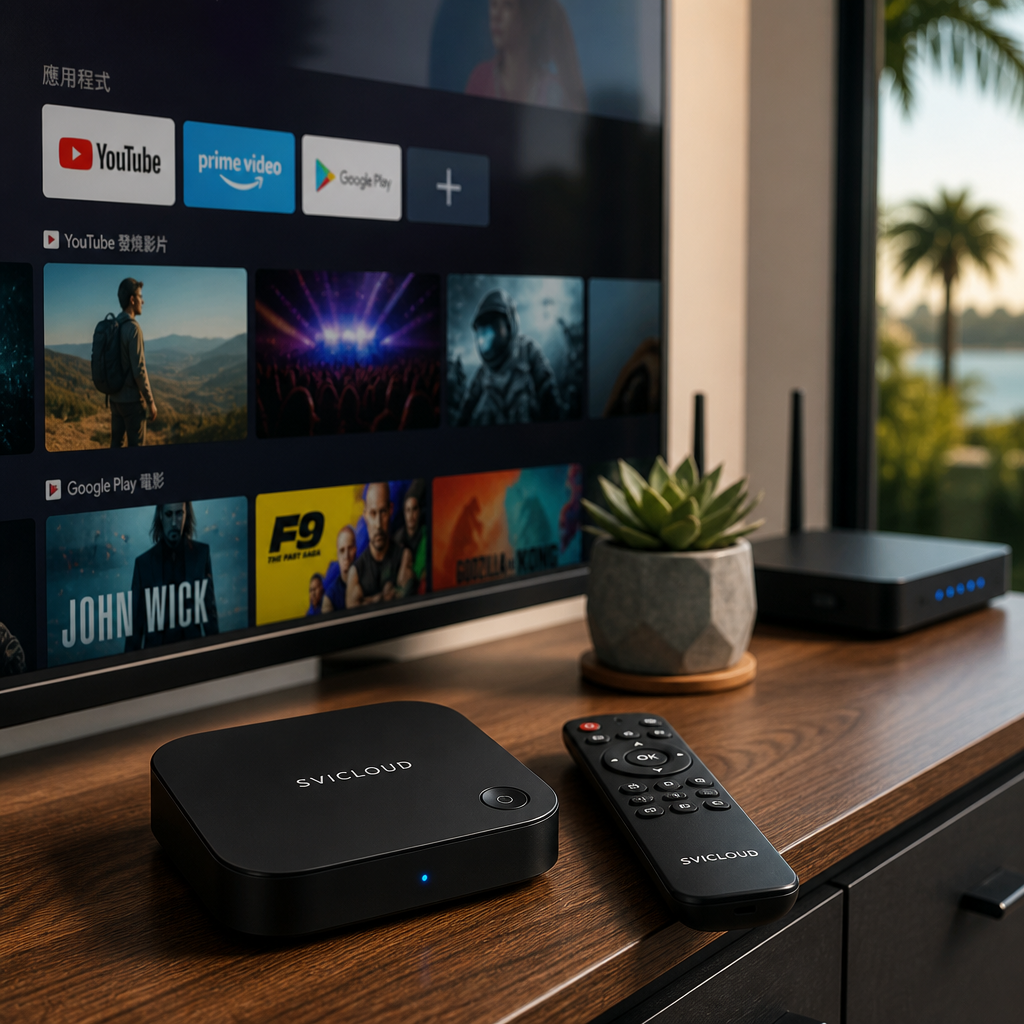
Many users, when they run into a SVICLOUD TV box that won’t power on, can’t connect to Wi‑Fi, fails remote pairing, or has abnormal app playback, first ask: How do I contact SVICLOUD TV box customer support? If you’re also looking for official support channels, this article helps organize the most practical contact methods and preparation points so follow-up handling goes more smoothly.
Whether you’re using SVICLOUD 10P+, SVICLOUD 10S, or are evaluating related after-sales support processes, it’s recommended that you first organize the model, purchase information, and problem description, then contact customer support through the official page. This usually helps save back-and-forth confirmation time and allows support to determine more quickly whether it’s a setup issue, a connection issue, or something that needs further after-sales assistance.
Why is it important to prepare information before contacting customer support?
整理資料 before contacting customer support may seem like an extra step, but in practice it is often the key to faster handling. Many TV box issues are not necessarily hardware failures; they may also be related to the network environment, system settings, or how accessories are connected. If you can provide complete information first, support can usually get straight to the troubleshooting points.
In addition, different models and purchase channels may have slightly different follow-up verification processes. So instead of saying only “it doesn’t work” or “the screen is stuck,” more specific information is usually more helpful.
First confirm the TV box model and serial number
SVICLOUD TV box support methods may differ depending on the model. For example, SVICLOUD 10P+ and SVICLOUD 10S may not have exactly the same features, interface, or settings locations, so confirming product information first is important.
You can check the model information from the following places:
- Product box or packaging label
- Sticker on the bottom of the device
- Device information in the system settings page
- Order or purchase record
If you’re still not sure which one you’re using, you can first refer to the official SVICLOUD plan comparison to compare the differences between SVICLOUD 10P+ and SVICLOUD 10S, which can help you describe the device model more clearly.
Organize the purchase date and purchase channel
When the issue involves warranty, after-sales support, replacement, or order lookup, purchase information is usually one of the first things customer support will verify. If you can provide it proactively, it usually reduces back-and-forth questions.
Recommended items to prepare:
- Purchase date
- Order number
- Receipt or payment screenshot
- Name of the purchasing platform or website
- Recipient name and contact information
If you purchased in the United States, especially in California, New York, Texas, and other areas, providing complete order information also helps customer support confirm the possible next steps more quickly.
Briefly record the issue symptoms
Many people contact support by simply saying “it won’t turn on” or “it’s very laggy,” but for technical support, that information is usually not enough. A more effective approach is to briefly record how the problem appears.
For example, you can write down:
- When the issue started
- Whether it happened after an update
- Whether only one app is affected
- Whether it happens every time or only occasionally
- Whether it only becomes abnormal after connecting a specific accessory
If you can attach photos, screenshots, or a short video, that usually helps with diagnosing the issue.
Prepare basic environment information
The playback and connection experience of a SVICLOUD TV box is often related to the home device environment. Things like Wi‑Fi stability, HDMI connection method, and external device usage can all affect performance.
You can organize the following information first:
- Wi‑Fi name and connection status
- Whether the router is working normally
- Whether you’re using a wired network
- Whether HDMI is connected directly to the TV
- Whether you have USB, SD card, or other accessories attached
If you want to check the basic settings yourself first, you can also read the official SVICLOUD FAQ, which usually includes common troubleshooting directions and operating instructions.
How do I contact SVICLOUD TV box customer support? Official contact methods
When it comes to “How do I contact SVICLOUD TV box customer support?”, the safest approach is to use the contact information published on the SVICLOUD TV Box US official website as the standard. This helps avoid non-official channels and is more useful for verifying orders, after-sales, or warranty information.
If you want the official support entry for the United States, you can first visit the US customer service and after-sales support page to view the current contact methods and instructions.
Official phone number
Phone support is usually suitable when you need immediate communication, especially when the device isn’t working properly, the screen is frozen, or you’re stuck in setup. Real-time verbal guidance is often more efficient than text alone.
Situations that are better suited to phone support include:
- Cannot power on
- Stuck on the startup screen
- Initial setup is stuck
- Need immediate troubleshooting
- Complex issues that are hard to explain in text
However, since official contact information may change, it’s recommended that you go directly to US customer service and after-sales support to check the latest support phone number and available contact methods. If you plan to call, prepare the following in advance:
- Product model
- Order information
- Problem description
- A callback number
Official email
Email is suitable when you need to attach photos, videos, screenshots of system screens, or when you want to keep a complete written record. If your issue is related to an order, warranty, or after-sales process, email is also more convenient for organizing full details.
When sending an email, it’s recommended to include at least:
- Name
- Contact phone number or email
- Order number
- Product model
- Time the issue occurred
- Problem description
- Troubleshooting steps already tried
- Attachments: photos/videos/screenshots
The advantage of email is that the information is more complete and it’s easier to follow up later. If you’re not sure which official email address is currently in use, it’s also recommended to confirm the latest details from the US customer service and after-sales support page.
Official contact page
If you’re not sure whether to call or email first, the official contact page is usually the safest entry point. The advantage of the contact page is that you can fill out information according to the type of problem, making it easier for support to route the case and arrange follow-up handling.
In general, common items on a contact form may include:
- Problem category
- Name
- Contact information
- Order information
- Product model
- Problem details
- Notes or additional explanations
When filling it out, it’s recommended to be as complete as possible and not leave only a sentence like “the device is broken.” The clearer the information, the easier it is for support to quickly get to the point. You can go directly to US customer service and after-sales support to submit a request.
FAQ page
In some situations, you don’t necessarily have to wait for support to reply first. Especially for common issues such as Wi‑Fi setup, remote pairing, video output settings, and system updates, checking the FAQ often helps you find a direction more quickly.
FAQ topics that are more suitable for initial troubleshooting include:
- Cannot power on
- Wi‑Fi connection issues
- Remote control operation problems
- System updates
- App playback issues
- Common order and after-sales questions
If you want to check on your own first, it’s recommended to visit the SVICLOUD FAQ to see whether there is a matching answer. This also applies to users in California, New York, Texas, and other regions, because many basic setup issues are unrelated to location, and checking common items first usually saves the most time.
When should you call, and when should you email?
Many people ask: should I call first or email first? There is no absolute rule; the key is the type of issue and how urgent it is.
If you want to find a direction more quickly, you can refer to the simple comparison below.
| Situation | Better method | Reason |
|---|---|---|
| Won’t power on, setup is stuck | Phone | Need real-time interaction and step-by-step guidance |
| Complex problem description | Phone | Verbal explanation is usually faster |
| Need to attach images, videos, screenshots | Easy to attach complete evidence at once | |
| Orders, warranty, after-sales process | Convenient for keeping written records | |
| Not sure what category the issue falls under | Contact page | Support can first route the case |
| Want to troubleshoot on your own first | FAQ | You may find a basic solution first |
Situations better suited to phone support
If your SVICLOUD TV box is in a state where it is “almost unusable,” such as completely unable to power on, stuck during startup, or unable to output video normally, phone support is usually more efficient. If support can verify indicator lights, screen status, and button response in real time, they can often narrow down the problem more quickly.
Phone support is also more suitable for situations like these:
- Stuck at a step during initial installation
- Need support to guide you step by step
- The issue involves multiple settings
- An elderly family member is using it and typing is inconvenient
Situations better suited to email
If you’re dealing with an intermittent issue, or if you need to attach visual evidence, email is more convenient. For example, playback stuttering, a specific app crashing, error messages after an update, or warranty/order inquiries are usually very suitable for email.
Email is especially useful for:
- Need to attach screenshots of error screens
- Need to record the problem with a video
- Want to keep a complete communication record
- The issue involves after-sales process or purchase information
How to choose the most effective contact method
If you still aren’t sure, the simplest rule is:
- Urgent issue: call first, then follow up by email
- Information-based issue: email first, with complete details attached
- Not sure how to classify it: first fill out the contact page
- Want to troubleshoot on your own first: check the FAQ
The benefit of doing this is that you don’t have to guess which channel is best; instead, you choose the most suitable one based on the nature of the issue.
Five things to check before contacting customer support
Before formally contacting customer support, doing some basic checks often helps you quickly rule out simple issues. Even if you still need support later, these checks can help support understand the situation more quickly.
1. Check the power supply and cables
Many issues that seem serious are actually caused by power or cable contact problems. It’s recommended to confirm that the power is stable, plugs are inserted firmly, and the adapter and power cord are not loose.
Check the following first:
- Whether the outlet has power
- Whether the power cord is plugged in securely
- Whether the HDMI cable is firmly connected
- Whether compatible accessories are being used
- Whether the TV input source is set correctly
2. Check the network connection
If the issue is playback lag, endless loading, or content not loading, the network is usually the first thing to check. See whether other devices in the home have the same issue, which helps determine whether it’s an overall network problem.
Recommended checks:
- Whether Wi‑Fi is connected
- Whether the signal is stable
- Whether the router was recently restarted
- Whether other phones or tablets also can’t connect
- Whether the signal is weak only in one location
3. Restart the device
Restarting may seem basic, but it is often very useful for temporary system glitches. You can first shut it down normally and turn it back on. If there is still no improvement, try unplugging the power and then turning it on again.
The steps can be summarized as:
- Shut down
- Wait a few seconds
- Restart
- If there is no improvement, unplug and reconnect the power once
4. Check for system updates
Some users encounter new problems after an update, while some issues occur because the system version is older and causes compatibility problems. So confirming whether the system status has changed is a very practical step.
You can note:
- Current system version
- Whether you recently updated
- Whether the issue started after the update
- Whether it was working normally before the update
If you’re not sure how to check, you can also refer to the related instructions in the SVICLOUD FAQ.
5. Confirm whether the issue can be reproduced
Customer support dislikes descriptions like “it acts weird sometimes,” because they’re hard to interpret. If you can observe whether the issue is reproducible first, it becomes easier to find the real cause.
You can note the following first:
- Whether it happens every time
- Whether it only happens in one app
- Whether it appears when entering a certain screen
- Whether it only happens when a certain accessory is connected
This information is very helpful for support and may also help you discover clues on your own.
How should you describe the issue when contacting customer support to get help more easily?
When you actually contact customer support, the way you describe the issue directly affects efficiency. Clear, specific, and reproducible descriptions are almost always more helpful than saying only “it doesn’t work” or “it’s broken.”
Recommended description format
You can organize your message using the format below. It’s useful whether you’re making notes before a phone call, sending an email, or filling out a contact form:
- Product model:
- Purchase date:
- Purchase channel / order number:
- Problem details:
- Frequency:
- When it started:
- Steps already tried:
- Attachments (photos/videos/screenshots):
This format lets support quickly grasp the core information and reduces the need for repeated follow-up questions.
Example problem descriptions
Here are some clearer ways to write it instead of simply saying “it doesn’t work”:
- “After powering on, it stays on the logo screen and does not enter the home screen for about 3 minutes.”
- “Wi‑Fi shows connected, but videos keep buffering; other phones are able to connect normally.”
- “The remote’s buttons light up, but the TV box does not respond. I have already replaced the batteries.”
- “Only one app keeps crashing; other functions are normal for now.”
- “After the system update, there is no sound, but the picture is normal.”
Avoid saying only “it doesn’t work”
When you only say “it doesn’t work,” support usually has to ask many more questions, such as:
- What exactly doesn’t work?
- Is it completely unable to power on, or is only one app not working?
- Does it happen occasionally or every time?
- Is there an error screen?
So, explaining the problem clearly is actually helping yourself get it resolved faster.
Common customer support issue types and suggested troubleshooting directions
Different issue types are better suited to different troubleshooting sequences. Below are several common SVICLOUD TV box customer support issues to help you get a basic direction before contacting support.
Cannot power on
If the SVICLOUD TV box has no response at all, it’s recommended to start with the most basic power and cable checks. No power, a faulty outlet, or a loose power cord can all make the device seem broken.
Try the following first:
- Confirm the outlet has power
- Confirm the power cord is plugged in securely
- Unplug and reconnect the power
- Try a different HDMI port
- Confirm the TV input source is correct
If there is still no improvement, it is more reliable to seek further help through US customer service and after-sales support.
Remote control won’t pair
Remote control issues are common, but they do not necessarily mean the main unit is faulty. Sometimes the battery level is low, pairing was not completed, or the response is affected by operating distance and direction.
Check the following first:
- Whether the batteries are installed correctly
- Whether new batteries have been used
- Whether the correct pairing steps were followed
- Whether the front of the main unit is blocked
- Whether there is still no response even when operating up close
If further confirmation is needed, you can also check the SVICLOUD FAQ for matching instructions.
Video playback stuttering or crashing
Playback lag, slow loading, and videos buffering endlessly are often related to network quality or app status, and do not necessarily mean the device itself is faulty. If only one app has the problem, it may also be due to compatibility or content source conditions at that time.
You can test the following first:
- Whether the home network speed is normal
- Whether the Wi‑Fi signal is weak
- Whether the issue occurs in only one app
- Whether the app has an update available
- Whether restarting improves the situation
System settings issues
Some users are actually dealing with settings issues such as language, resolution, or audio output, especially after initial installation or after changing TVs. These issues do not necessarily require repair; many can be solved through settings adjustments.
Common topics include:
- Incorrect display resolution
- No sound
- Wrong language setting
- Screen image exceeds the display
- Abnormal Bluetooth or peripheral settings
If you need to compare the features of different models first, you can also refer to the SVICLOUD plan comparison.
Warranty and after-sales inquiries
If your issue is related to after-sales support, warranty, replacement, or order verification, it’s recommended to prepare complete purchase information first. That way, support can confirm the possible process and options more quickly.
Provide the following if possible:
- Order number
- Purchase date
- Purchase platform
- Product model
- Photos or videos of the issue
- Steps you have already tried
In addition, if this is your first purchase, or if you’re still evaluating which model better fits your needs, you can also visit the SVICLOUD US official website to view official information and current availability, then use the SVICLOUD plan comparison for further understanding.
How can you avoid contacting non-official channels?
When searching for “How do I contact SVICLOUD TV box customer support?”, many different sources may appear online. For users, the most important thing is to rely as much as possible on the pages published on the official website, and avoid sharing order information, personal data, or device details with unverified sources.
A safer approach is:
- Enter through the SVICLOUD US official website
- Use the official US customer service and after-sales support
- First check the SVICLOUD FAQ
- Compare product information using the SVICLOUD plan comparison
If some third-party information does not have a clear source, or if the contact details do not match the official website, it’s recommended to stay alert and use the information shown on the official site as the standard.
What do users in the United States care about most? Common situations in California, New York, and Texas
For users in the United States, beyond the device’s viewing experience, many people also care about whether after-sales contact is convenient, especially in regions with many users such as California, New York, and Texas. The common need is usually not just “can I contact support,” but “can I find a clear, official, and trackable support channel.”
Common situations include:
- First-time installation gets stuck after the new unit arrives
- Network or playback issues occur after using it for a while
- Want to confirm orders and after-sales processes
- Family elders need Chinese-language assistance
- Comparing different models while also learning how convenient future support will be
In this situation, getting official information first through the website contact page and FAQ is usually a more reliable approach. If you need to compare models further, you can refer to the SVICLOUD plan comparison; if you want to view the overall official information, you can start from the SVICLOUD US official website.
What should you do next?
If you’re currently dealing with setup, malfunction, warranty, or after-sales issues for your SVICLOUD TV box, it’s recommended to follow the steps below:
1. First organize the model, order number, purchase date, and problem description 2. First visit the SVICLOUD FAQ to see whether there is a ready-made solution 3. If you need official assistance, go to US customer service and after-sales support to submit a request 4. If you’re still comparing SVICLOUD 10P+ and SVICLOUD 10S, you can refer to the SVICLOUD plan comparison 5. If you want to view the overall official information and latest status, return to the SVICLOUD US official website
In short, when asking How do I contact SVICLOUD TV box customer support?, the most important thing is not just finding a contact method, but contacting through the official channel with complete information. This usually makes handling more efficient and also helps maintain the stable viewing experience you originally expected.