
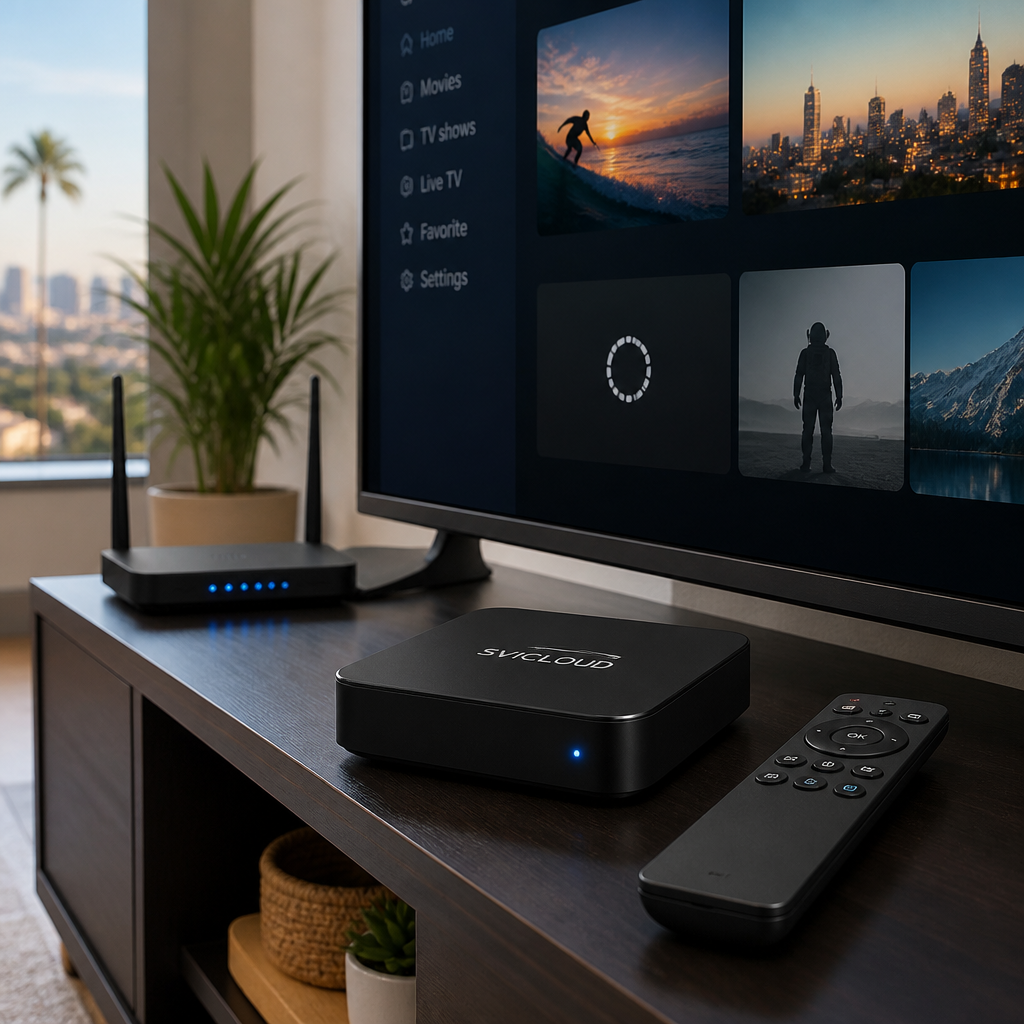
Many users have run into this situation: the SVICLOUD TV Box shows Wi-Fi connected, but the app won’t open, videos keep spinning, or nothing happens when you press play. Don’t rush to conclude the device is broken. This kind of issue is very common in U.S. home network environments, especially in places like California, New York, and Texas, where home layouts vary and there are many different router brands. In many cases, you can resolve it yourself with a few setup steps.
This article will walk you through the most practical checks step by step: whether the network is not truly connected, whether the Wi-Fi band is unstable, whether it’s a DNS issue, or whether system time is causing app verification to fail. If it still cannot be fixed in the end, we’ll also tell you how to contact SVICLOUD TV Box US local support in the United States.
First, identify the problem type: is it "no internet at all" or "connected but apps don’t work"
When you see Wi-Fi marked as "connected," that does not mean the TV box is definitely connected to the internet. Often, the device has only connected successfully to the home router, but the router itself is not connected properly to the internet, or certain services are not being resolved correctly.
First, divide your situation into the following three types. That will make troubleshooting faster.
Situation A: Wi-Fi shows connected, but there is actually no internet
The most common signs are:
- The SVICLOUD TV Box shows connected to Wi-Fi
- You may be able to enter the home screen
- But the app keeps failing to update content
- Or no page loads at all
This usually means:
- The modem or router is temporarily abnormal
- The ISP connection is unstable at the moment
- The TV box got a local network IP but did not successfully connect to the external internet
If you just moved, changed internet providers, or moved the router to a different location, this kind of issue is more likely to happen.
Situation B: The home screen works, but apps won’t open
If you can operate the system normally and enter the home screen, but certain apps do nothing when tapped or stay on loading after opening, the problem is usually not about whether Wi-Fi is connected, but rather a deeper network setting or verification layer.
Common causes include:
- The app service is temporarily unstable
- DNS resolution is unstable
- System time and date are incorrect
- App cache data is conflicting
This kind of issue easily makes people think the device is faulty, but in most cases there is still room to troubleshoot.
Situation C: The app opens, but videos won’t play
This is also very common, especially during evening peak hours, when many people are online at once, or when the TV box is far from the router.
Common signs include:
- Videos keep spinning
- Black screen with no error message
- Playback stops after a few seconds
- The image becomes unstable or the app exits automatically
Possible causes usually include:
- Unstable network
- An unsuitable 2.4G / 5G band choice
- Wi-Fi interference at home
- Accumulated app cache
- Slower connection speed on certain servers
If you want more official support information first, you can also refer to SVICLOUD FAQ.
Step 1: Restart the modem and router first
Many people’s first reaction is to restart the TV box, but what is actually more worth doing first is a full restart of the modem and router. That’s because the real cause of "Wi-Fi connected but won’t play" is often the home network equipment, not the SVICLOUD TV Box itself.
Why you should restart the network equipment first
After running for a long time, routers and modems may develop:
- IP assignment issues
- Accumulated cache memory
- Abnormal DNS responses
- Local network works, but internet access does not
After restarting, the devices rebuild the connection and clear some temporary errors, and the TV box can obtain a cleaner network state.
The correct way to restart
It’s recommended to follow the order below. Don’t just tap the router power button and stop there.
1. Turn off the SVICLOUD TV Box 2. Unplug the modem power 3. Unplug the router power 4. Wait 30 seconds to 1 minute 5. Plug the modem back in first and wait for the lights to stabilize 6. Then plug the router back in and wait for Wi-Fi to return 7. Finally, turn the TV box back on and test the app
If your home uses a Mesh Wi-Fi system, it is also recommended to restart the main router and the nodes together.
What to observe after restarting
After the restart is complete, don’t only look at the Wi-Fi icon. More importantly, check the following:
- Whether the TV box can reconnect to Wi-Fi normally
- Whether apps load faster than before
- Whether videos still keep spinning
- Whether playback is more stable and no longer exits
If it works normally after restarting, then the problem is likely temporary network instability. If it remains the same, move on to the next step.
Step 2: Check whether other devices can access the internet normally
The purpose of this step is to narrow down the problem. You need to know whether the issue is with the entire home network or only with the TV box.
Test the same Wi-Fi with a phone or tablet first
Use a phone, tablet, or laptop to connect to the same Wi-Fi name as the TV box, then test:
- Whether websites open normally
- Whether YouTube or other streaming content can play
- Whether there is obvious lag, freezing, or disconnection
If other devices are also unstable, it is usually due to:
- Fluctuations in ISP connection quality
- Too much load on the router
- Poor wireless signal coverage
In that case, instead of continuing to adjust the TV box, it’s better to check the overall home network environment first.
Remember that "usable on the surface" and "actually stable" are different
Some home networks look like they can get online, but the quality is actually poor. For example:
- Web pages open, but video playback is very slow
- Social apps work, but streaming services often freeze
- It works during the day, but becomes unstable at night during peak hours
In California apartments, New York buildings, and larger homes in Texas, these three situations are all very common. Building structure, neighbor Wi-Fi interference, and router placement can all affect performance.
If only the TV box has problems, the direction is clearer
If your phone, tablet, and computer all work fine, and only the SVICLOUD TV Box is abnormal, then you can prioritize checking:
- Whether it is currently connected to 2.4G or 5G
- Whether the DNS settings are not ideal
- Whether the time and date are incorrect
- Whether app cache or system temporary files are affecting use
This means the hardware may not be the problem. In many cases, the device and network settings just need adjustment.
Step 3: Switch between 2.4G and 5G Wi-Fi to find the more stable band
Many users think 5G must be better, but for TV box playback, stability is often more important than theoretical speed. If apps open but videos often freeze, spin, or show a black screen, switching bands can often help a lot.
The difference between 2.4G and 5G
This table can help you judge quickly:
| Item | 2.4G Wi-Fi | 5G Wi-Fi |
|---|---|---|
| Coverage distance | Longer | Shorter |
| Wall penetration | Better | Weaker |
| Speed | Usually slower | Usually faster |
| Resistance to distance loss | Better | More sensitive |
| Best for | Far from router, through walls | Same room or close range, higher speed needed |
When to switch bands
If you have any of the following situations, it is recommended to test switching:
- The TV box is in the living room, but the router is in another room
- There are 1 to 2 walls in between
- It gets especially laggy at night
- App loading speed is inconsistent
- The same video sometimes plays and sometimes doesn’t
Simply put, if the signal quality is unstable, even full bars do not necessarily mean the actual streaming performance is good.
Practical steps
You can follow these steps:
1. Enter the Wi-Fi settings on the SVICLOUD TV Box 2. Find the network currently connected 3. Choose to forget that network 4. Scan for Wi-Fi again 5. Connect to the other band name
6. Enter the password and reconnect 7. Return to the app and test opening and playback
- For example, if you were connected to 5G, try 2.4G
- If you were connected to 2.4G, try 5G
Band selection suggestions
In actual use, you can follow this rule:
- Far away, many walls: try 2.4G first
- Close range, same space: 5G can be tried first
- Don’t look only at speed numbers; prioritize playback stability
If you live in a New York apartment building with many neighboring Wi-Fi networks, the 2.4G band may be crowded. But if you live in a larger Texas home, 5G may be fast yet unstable because the distance is too far. California also often has mixed residential environments, so it’s best to test and decide.
If you are comparing devices and usage needs, you can also refer to SVICLOUD plan comparison to learn about the differences and support information for SVICLOUD 10P+ and SVICLOUD 10S.
Step 4: Check DNS settings to fix apps that won’t open or content that won’t load
If Wi-Fi is clearly connected and other devices can go online, but the apps on the SVICLOUD TV Box still won’t open or content won’t load after opening, then it may be related to DNS.
Why DNS affects app usage
DNS converts a website or service name into the actual place it can connect to. You can think of it as an "internet phonebook."
When DNS is unstable, these things often happen:
- The app icon appears normal, but the content is blank
- You can enter the app, but it keeps loading
- Some services open, while others cannot open at all
- Updates, logins, or verification fail easily
This situation is often not "no internet," but rather "there is internet, but the correct path cannot be found."
When DNS is especially worth suspecting
Check whether the following applies:
- Apps on the phone using the same Wi-Fi are mostly fine, but the TV box apps are abnormal
- After restarting the router, it works briefly, then the problem comes back later
- Some apps can play, while others never load
- Switching to a different Wi-Fi improves the situation
If so, it is worth trying manual DNS.
DNS adjustment steps
The actual interface may vary slightly depending on the system version, but the general process is as follows:
1. Enter network settings 2. Select the currently connected Wi-Fi 3. Find advanced settings or detailed network settings 4. Change DNS from automatic to manual 5. Enter the DNS value you want to test 6. Save the settings 7. Restart the TV box 8. Test again whether the app returns to normal
If you are not sure which DNS to use, it is recommended to base it on your local network environment and test conservatively. Performance may differ by ISP, state, and even community, so do not assume one setting fits every home.
How to tell whether the adjustment worked
After setting it, observe:
- Whether the app opens smoothly
- Whether previously blank content loads normally
- Whether videos start playing
- Whether page switching becomes faster overall
If there is obvious improvement, then DNS may be one of the key factors. If there is no difference, that does not mean the step was wasted—it at least rules out one common cause.
For more basic settings and troubleshooting directions, you can also first look at SVICLOUD FAQ.
Step 5: Confirm whether the system time and date are correct
This step is often overlooked, but it is actually very important. Some apps or services check whether the device time is correct when connecting. If the time is too far off, it may affect login, authorization, updates, and even video playback.
Why incorrect time can cause playback issues
When the device time is not correct, the following may happen:
- App verification fails
- Login errors occur
- Authorization is judged incorrectly
- Playback stops or loading fails
Especially if you have ever:
- Manually adjusted the time
- Reset the system
- Changed network environments
- Moved across time zones or brought the device back after travel
then you should be even more careful to check the time zone and time settings.
Pay special attention to time zones when using the device in the U.S.
When used in the United States, different states may be in different time zones. For example:
- California: usually Pacific Time
- Texas: most areas are usually Central Time
- New York: usually Eastern Time
If the time zone shown on the TV box is very different from your location, some services may become abnormal. This does not happen every time, but it is still worth checking.
How to check and correct it
Please go into system settings and check:
- Whether the date is correct
- Whether the time is correct
- Whether the time zone matches your location
- Whether automatic date and time is enabled
Recommended steps:
1. Enter Settings 2. Find Date & Time 3. Turn on automatic date & time 4. Confirm that automatic time zone or manual time zone is set correctly 5. Return to the home screen and reopen the app to test
If the app suddenly works normally after correcting this, then the issue may very likely have been caused by time verification.
Step 6: If apps open but playback is still unstable, check cache and network environment details
Some users reach this point and find that Wi-Fi has been confirmed, bands have been switched, DNS has been adjusted, and time is correct, but playback is still unstable. At this stage, you can shift your focus to more detailed usage conditions.
Clearing app cache can sometimes improve abnormalities
After long-term use, app cache data may build up and cause:
- Slower opening speed
- Freezing screens
- Abnormal playback
- Inconsistent content updates
In the system’s app management, find the problematic app and try:
- Clearing cache
- Closing and reopening it
- Restarting the device if needed and testing again
Before doing this, you may want to remember your login information in case you need to sign in again after resetting.
Check router placement and sources of interference
If your TV box is not far from the router but still often unstable, the environment may be causing interference.
Common sources of interference include:
- Microwave ovens
- Heavy Bluetooth device usage
- Wireless speakers
- Metal cabinets
- A TV stand that is too enclosed
- The router placed in a corner or on the floor
You can try the following adjustments:
- Place the router a bit higher
- Avoid blocking it with large furniture
- Do not put the TV box completely inside a closed cabinet
- Reduce obstacles between the router and the TV box
If it lags more at night, it may be peak-hour congestion
If you notice it is more normal during the day but especially laggy at night, that usually means:
- Too many devices are connected at the same time
- The router is under heavy load
- The ISP is less stable during peak hours
- The overall neighborhood network environment is congested
You can do a simple test:
- Turn off other devices that use a lot of bandwidth
- Pause cloud backups or large downloads
- Test playback at a time with less interference
These tests help determine whether the issue is with the device itself or with the home network usage scenario.
Common symptoms and suggested actions table
If you want a quick direction, look at the table below first.
| Symptom | Possible cause | Priority action |
|---|---|---|
| Wi-Fi shows connected, but apps won’t open at all | Router external network issue, DNS issue | Restart modem/router first, then check DNS |
| Home screen works, but apps keep spinning | DNS, time settings, unstable network | Confirm time and date first, then test DNS |
| Apps open, but video is black or won’t play | Unstable band, Wi-Fi interference | Switch between 2.4G / 5G and adjust router placement |
| Only laggy at night | Peak-hour congestion, too many home devices | Reduce simultaneous network load and observe different times |
| Phone works, only the TV box is abnormal | Band, DNS, system settings | Check 2.4G/5G, DNS, and time settings in order |
When to contact support
If you have already tried the checks above and still have the following situations, it is recommended to seek help directly:
- Apps cannot load properly every time the device powers on
- Switching Wi-Fi and restarting the router do not help
- All apps continue to be abnormal
- The system settings page itself often freezes
- You are not sure whether further device checks are needed
At that point, instead of repeating the same attempts, it is more efficient to let support staff familiar with the product help you judge the issue. For many users in the U.S., being able to communicate in Chinese about setup problems is much easier, especially when it comes to installation, connection, and after-sales troubleshooting.
If you need help, you can contact SVICLOUD TV Box US through U.S. customer service and after-sales support. If you also want to see official product and availability information first, you can visit the SVICLOUD U.S. official site.
A few tips to reduce Wi-Fi issues when using the SVICLOUD TV Box
Although not every problem can be completely avoided, the following habits usually help improve daily stability.
Recommended usage habits
- Restart the router and modem regularly
- Place the router in an open, higher location
- Prioritize the band with more stable signal rather than chasing speed only
- When an app behaves abnormally, check the time and network first instead of immediately assuming the device is broken
- If you change ISPs or move, check the network settings again
When it may be worth rechecking your device needs
If your home environment has the following conditions, you may also want to evaluate whether your current device setup is suitable:
- The home is large with many rooms
- The router is far from the living room
- Multiple people often watch videos or play games at the same time
- You have higher expectations for smooth playback
- You want clearer product differences and support information for reference
In that case, you can refer to SVICLOUD plan comparison to learn about the feature positioning and support information for SVICLOUD 10P+ and SVICLOUD 10S, then judge according to your own usage environment.
Conclusion: When Wi-Fi shows connected but won’t play, troubleshoot in order
When you run into the SVICLOUD TV Box showing Wi-Fi connected but not playing, the most important thing is not to randomly try a bunch of settings, but to check them in order. In most cases, the problem is not necessarily a hardware failure. It is often something easy to overlook, such as the network equipment, band, DNS, or time settings.
You can start with this sequence:
- Restart the modem and router
- Check whether other devices can access the internet normally
- Switch between 2.4G / 5G
- Check DNS settings
- Confirm the time and date are correct
- Contact support if needed
Next step recommendation
If you want to further confirm settings or contact support, it is recommended to start with the following pages:
- SVICLOUD FAQ: check common settings and troubleshooting information first
- U.S. customer service and after-sales support: contact directly when you need Chinese-language help
- SVICLOUD U.S. official site: view official information and regional content
- SVICLOUD plan comparison: learn the differences between SVICLOUD 10P+ and SVICLOUD 10S
If you are willing to troubleshoot step by step, many "Wi-Fi connected but won’t play" problems can actually be solved at home.