
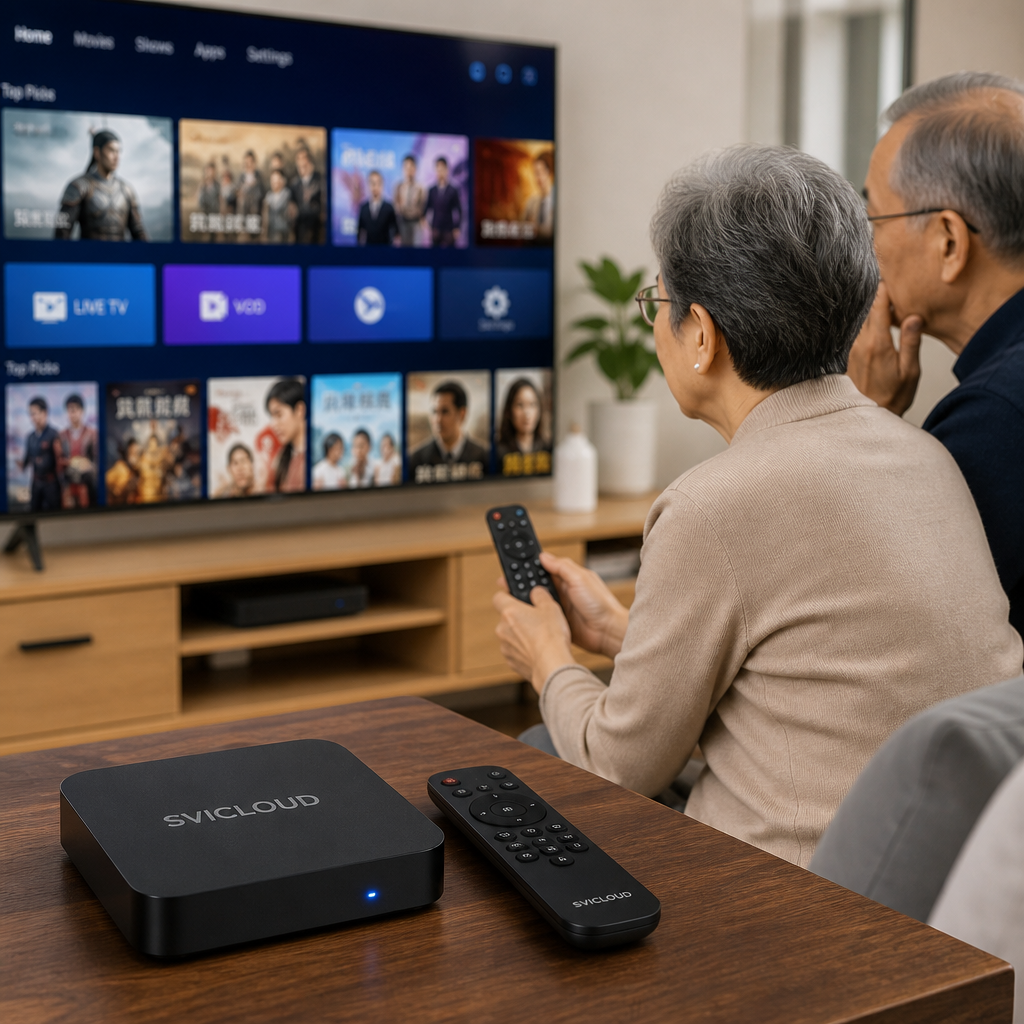
Many families have the same scene: the TV box is already set up, but mom and dad only dare to press the power button. As soon as they see a new screen, they get nervous and even wonder if they’ve broken the device. In fact, older adults are not unable to learn—it’s just that no one has taught them in a way they can understand and remember.
This article uses a “step by step, one picture at a time” approach to break the teaching process into the simplest actions: which button to press, what screen to look for, and what to do next. You can also turn the key points in this article into an instruction card and place it next to the TV, so your parents can slowly learn to use it on their own at home.
First understand why your parents don’t seem to learn—it’s not because they don’t want to
When teaching older adults to use a TV box, the biggest mistake is teaching at our own speed. For younger people, switching screens, finding apps, and pressing back are all second nature. But for many parents, the TV, TV box, and remote control are actually three different systems. Just figuring out who controls what is already quite difficult.
Especially in American households, many Chinese families in places like California, New York, and Texas have cable TV, streaming devices, and TV boxes connected at the same time. When there are too many remotes, parents get even more confused. At that point, what they really need is not a more complicated explanation, but fewer and more fixed operating paths.
It’s not that they’re not smart—it’s that there are too many interfaces and too many buttons
The places where older adults most often get stuck are usually not “how to watch,” but “where am I now?”
Common situations include:
- Not knowing which source the TV is currently on
- Not understanding what Home, Back, Source, and OK mean
- Getting moved to another page by accident and then not daring to press anything else
- Wanting to watch one video but having to go through too many menus first
- Worrying that pressing the wrong button will mess up the settings
So the key to teaching is not to explain every function at once, but to start with only the 3 to 5 most commonly used actions. Once parents have some success, they’ll be more willing to keep learning.
Turn “operation” into everyday language
If you directly say “press Home to return to the launcher, then open the app,” many parents will forget it as soon as they hear it. If you translate it into everyday language, it will be much easier to remember.
You can explain it like this:
- Home = go back to the home screen, go home
- Back = go back one step, step back
- Source / Input = switch the screen source
- OK = confirm, choose this one
- Volume + / - = louder, quieter
The most effective teaching method is usually:
- one sentence
- one action
- one demonstration
For example: “If you get lost, press this home button.” Then press it once in front of them. That is much more useful than explaining the principles of the settings in a long speech.
Before teaching your parents, set the TV box to a “senior-friendly mode”
Many people hand the new device directly to their parents and then start teaching verbally. But the truly efficient method is to organize the environment first. The cleaner the interface and the fewer the options, the easier it is for parents to succeed.
If you’re considering different models, you can also look at the SVICLOUD plan comparison to understand the differences between SVICLOUD 10P+ and SVICLOUD 10S. Choose the device that better fits your household viewing habits first, then continue with the setup.
Organize the language, font, volume, and home screen first
Before you start teaching, it’s recommended to do the following:
- Set the system language to Traditional Chinese
- Choose a clearer, larger display style
- Keep only the functions parents actually use on the home screen
- Move less-used entries further back to avoid accidental presses
- Test the volume in advance so it doesn’t jump too high or too low
- Make sure the network connection is stable to reduce playback interruptions
This step is very important. Older adults need a sense of stable repetition, not a system with “everything.”
If you’re not sure how to begin with installation or setup at home, you can also refer directly to the SVICLOUD US official website for device information, or go to US customer service and after-sales support to arrange Chinese-language assistance. For families living in California, New York, Texas, and other places, having a local communication channel usually brings peace of mind.
Set up one “most-used flow” for your parents
Parents don’t need to learn ten routes; they only need to learn one route they use most often first.
The most recommended fixed flow has only three steps:
1. Turn on the TV and the TV box 2. Press Home to return to the home screen 3. Select the usual app and start playback
If the home screen can be set with favorites or shortcuts, it’s best to prepare that for them first. Ideally, every time they enter, they see the same location, the same icons, and the same order.
The benefits of doing this are:
- Less decision pressure
- Higher success rate
- Muscle memory can gradually form
- Family members can also teach using the same wording
Prepare a “family-only instruction card”
This is very practical, and it’s often more useful than repeating the instructions ten times. Turn the most important operations into a large-print memo and place it next to the TV. If older adults forget, they can look at it without waiting for the children to come home.
The instruction card should include:
- Which button is the power button
- Which button is the Home button to return to the home screen
- Which button is the Back button
- Where to adjust the volume
- Which button to press first when the picture disappears
- What to do first when everything gets mixed up
Design principles are simple:
- Large text
- Few words
- Arrows
- Color markings if possible
- Only the most-used functions on one sheet
You can even put small labels directly on the remote, such as sticking “go home” on Home and “step back” on Back. It’s much faster for older adults to remember the meaning than the English word.
Step by step: a basic TV box operating flow parents can understand
This section is best used together with photos or screenshots. You can take pictures of the TV, the remote, and the home screen at home with your phone, then turn the following flow into a family teaching guide.
Step 1: Turn on the TV and the TV box
First make sure your parents understand that the TV and the TV box may not use the same power switch. Some families only press the TV power button and forget that the TV box itself also needs to be turned on; others do the opposite—the TV box is on, but the TV is not switched to the correct screen.
You can teach it like this:
- Press the TV’s power button first
- Then press the corresponding power button on the TV box
- Wait for the picture to appear; don’t press many times in a row
If your parents often confuse which remote controls which device, it’s recommended to:
- Use colored stickers
- Label the TV remote as “TV”
- Label the TV box remote as “SVICLOUD TV box”
This kind of small organization may seem minor, but it can greatly reduce frustration for older adults.
Step 2: Check the input source
This is the most common issue, and it’s also the one most easily mistaken for “broken.” Often there’s no signal problem—the TV has just switched to the wrong input source.
You can teach your parents one key phrase:
> If the picture disappears, look for Source first. Don’t rush to restart.
Source may also be labeled Input. It means switching the TV to the correct signal entry.
The teaching steps can be simplified to:
1. If the screen goes black or is not the familiar home screen, don’t panic 2. Find Source / Input on the TV remote 3. Press it once and select the input connected to the TV box 4. Stop when the familiar screen appears
If there is only one fixed port at home, it’s best to write it clearly on the instruction card, such as “If the screen is black, press Source and select the fixed one.” That is much easier than explaining terms like HDMI or signal source.
Step 3: Return to the home screen
In any teaching process, the first thing parents need to remember is not how to search or how to change channels, but how to “go home.”
The Home button can almost be considered a universal button. When parents accidentally jump to another screen, don’t know where they are, or don’t know how to return after watching a video, pressing Home usually brings them back to a familiar starting point.
You can say:
- “If you can’t find your way, press the go-home button.”
- “If you’re not sure what to do, go back to the home screen first.”
- “If you see an unfamiliar screen, don’t be afraid—go home first.”
This idea needs to be established first, because once older adults know that pressing the wrong thing still lets them come back, they won’t be as afraid.
Step 4: Open the video app or the function they use most often
Many older adults are not unable to recognize icons—they just don’t know which one is the one they normally need. So don’t rush to teach too many things at this step; just start with the 1 to 2 most common entries.
Recommended teaching method:
- Recognize icons first; don’t rush to recognize English words
- Use descriptions like “the first one on the left,” “the blue one,” or “the one with the TV icon”
- Enter through the same path every time
If the home is used by multiple people—children watching one type of content and parents another—the home screen should be organized in advance. Avoid too many unrelated options after opening, which can leave older adults unsure what to choose.
That’s also why, before buying, you can look at the SVICLOUD plan comparison to judge whether SVICLOUD 10P+ or SVICLOUD 10S is more suitable for older adults in the household. For older adults, whether the operation feels smooth is often more important than technical terms.
Step 5: Play, pause, go back
Once you reach the playback page, teaching just three practical actions is enough:
- Want to stop for a moment: press pause
- Want to continue watching: press play again
- Want to return to the menu: press Back
Pay special attention not to teach too many functions at once, such as fast-forward, settings, subtitles, menus, or favorites. When parents are just starting out, what they need most is “be able to watch, be able to stop, be able to come back.”
You can help them remember with everyday situations:
- The phone rings, press pause
- Want to keep watching, press it once more
- Want to switch to something else, press step back
By this point, most older adults already have enough to handle daily viewing.
How to teach remote control habits so parents don’t keep pressing the wrong button
Often the problem isn’t the TV box itself, but that there are too many buttons on the remote. Young people can tell at a glance, but parents may feel that every button looks the same.
The best method is not to explain everything, but to “teach in layers.” First teach the five most important buttons, then gradually add more.
Just remember 5 important buttons to start
At the beginning, please only have your parents remember these five:
- Power button
- Home
- Back
- Volume up/down
- OK confirmation button
Other buttons, such as number keys, settings, and shortcut keys, can be left for later. Too much information only makes it easier to forget.
You can even take a photo of the remote, circle these five buttons, and print it as a simple diagram. This “step by step, one picture at a time” method is very effective for older adults.
Give each button a life-based name
Life-based names are easier to turn into habits than English names. You can standardize the words used at home and avoid calling it Home one day and the home screen button the next. The more consistent the wording, the better.
For example:
| Original button name | Suggested teaching term |
|---|---|
| Power | power switch |
| Home | go-home button |
| Back | step back |
| OK | confirm button |
| Volume + / - | louder / quieter |
If your parents have weaker eyesight, you can also use:
- Colored stickers
- Fluorescent labels
- Handwritten short labels
The goal isn’t to make the remote look pretty; it’s to let your parents find the button they need at a glance.
Teach the order of operations, not just the function
Older adults often don’t get stuck because they don’t know which button to press—they get stuck because they don’t know what to press first and what to press next. This is very important.
For example, don’t just say “this is the OK button.” Instead, teach it as:
1. Press Home first 2. Use the directional buttons to move to the icon you want 3. Then press OK
This way, what they remember is a process, not an isolated button.
In practice, the most successful way for parents to learn is not to “understand the system,” but to “remember the route.” So what you’re teaching is the sequence, not technical terms.
Don’t correct too much when they press the wrong thing
Many older adults don’t fail because it’s hard—they fail because every time they press the wrong thing, family members say, “No, not that one, why did you press that again?” After a while, they become afraid to touch it.
A better way to say it is:
- “It’s okay, just press the home button first.”
- “Let’s start over once.”
- “Don’t be afraid of this screen, just step back.”
- “You’ve already learned half of it; just press this next.”
Let your parents know that pressing the wrong button is not failure—it’s part of operating the device. As long as they are not afraid to press buttons, they’ll become more and more familiar with it.
The 8 questions parents ask most often and standard answers
The section below is perfect for turning into a memo. You can print out the questions and answers and stick them next to the TV as a family FAQ.
1. What should I do if the picture disappears?
Don’t rush to assume it’s broken. In most cases, the input source is wrong, or the TV hasn’t switched back to the correct screen.
Standard answer:
- First make sure the TV is on
- Then press Source / Input on the TV remote
- Select the input originally used by the TV box
- If it still doesn’t work, press Home and see if it comes back
2. What if a strange screen suddenly appears?
Older adults are most afraid of seeing an unfamiliar screen. At this point, the most important thing is to let them know this does not mean they pressed something wrong.
Standard answer:
- First press Back to go one step back
- If you still don’t know where you are, press Home to return to the home screen
- Once back on the home screen, choose the usual entry again
3. How do I adjust if the volume is too low or too loud?
This sounds simple, but in practice it often gets confused with whether it’s the TV volume or the device volume.
Standard answer:
- First press the volume up/down button
- If the sound still isn’t right, check whether you used the TV remote
- It’s best for the household to use only one fixed way to adjust volume to avoid confusion
4. How do I return to the screen I started on?
Parents often say, “I want to go back to the original place,” but don’t know what that screen is called.
Standard answer:
- Just press Home directly
- Home is the go-home button
- When you’re not sure where you are, returning to the home screen is the safest choice
5. Why doesn’t it respond when I press it?
This may not be a device failure, but a remote direction, battery, or signal issue.
Standard answer:
- First check whether the remote is pointing at the device
- See whether the battery is running low
- Don’t press many times in quick succession; press once and wait a second
- If it still doesn’t respond, restart the device
6. Why can’t I get back to the place I wanted?
Usually it’s because parents keep pressing Back, which makes them go further and further away, or they jump to another level.
Standard answer:
- Don’t keep pressing repeatedly
- If you don’t know where you are, press Home directly
- After returning to the home screen, go in again from the fixed entry
7. What if I can’t find something I used to watch often?
This usually means the home screen order has changed, or the older adult entered another page.
Standard answer:
- First return to the home screen
- Find the icon you usually use
- If it’s often hard to find, ask family to move the common entry to the front
- You can also use favorites or collections to organize it first
8. If I really can’t do it, what should I do at the end?
No matter how good the teaching is, there will be times when parents suddenly get stuck. At that point, giving them a “final safe step” is very helpful.
Standard answer:
- First press Home
- If that still doesn’t work, turn it off and back on
- If family isn’t nearby, check the SVICLOUD FAQ
- If you need further help, contact US customer service and after-sales support
The most suitable teaching pace for older adults: teach one thing at a time
When children teach their parents, the biggest problem is often not a lack of patience, but wanting to teach everything at once. But for older adults, learning a new way of operating naturally takes repetition and time.
You can change the teaching pace like this:
- On day one, only teach powering on and returning to the home screen
- On day two, only teach how to open the usual app
- On day three, teach play, pause, and back
- After a week, add other functions as needed
The benefits are:
- Less information each time, so lower pressure
- Parents are more likely to feel a sense of achievement
- Family members are less likely to get impatient while teaching
If your parents are older or not very familiar with technology products, it’s even more recommended to use “fixed flow repeated practice” instead of “explaining the principles.” For everyday use, getting to the destination matters more than knowing the whole map.
How to use family situations to help parents build memory
The most effective teaching is often not sitting down for a class, but practicing in real situations. You can use the content your parents already want to watch and teach them while watching.
For example:
- After dinner, let them turn it on by themselves once
- When they want to find a show they often watch, let them press Home once
- When the phone rings, teach pause on the spot
- When they finish watching and want to exit, teach Back once
This method is more effective than verbal explanation alone because it connects the buttons with real-life situations.
You can also fix a few phrases:
- If the picture disappears, look for Source first
- If you’re lost, press the go-home button
- If you accidentally leave, step back first
- If you want to choose this one, press confirm
Once these phrases are fixed, parents are more likely to replay them in their minds by themselves.
If you’re choosing a device for your parents, think about “ease of teaching” before anything else
When many people choose a device, they first look at how many features it has. But if the main users at home are your parents, what really matters is often whether the interface is simple, whether the flow is fixed, and whether family members can help easily.
When evaluating, you can look at these points first:
- Is the home screen easy to organize?
- Can common functions be found quickly?
- Are the remote buttons intuitive?
- Is it easy for family to teach remotely or over the phone?
- Is there a clear after-sales support channel?
If you’re comparing different options for the SVICLOUD TV box, you can refer to the SVICLOUD plan comparison to see which of SVICLOUD 10P+ or SVICLOUD 10S better fits the household’s habits. If you want to check the current information directly, you can also visit the SVICLOUD US official website.
A reminder for children: first aim for “usable,” then aim for “used often”
Teaching your parents to use a TV box doesn’t need to turn into a tech class. For most families, the real goal is very simple: let parents turn it on comfortably, find what they want to watch, and not panic when they run into a problem.
So first aim for these three things:
- Parents dare to press it themselves
- Parents know how to come back when they press the wrong thing
- Parents can complete the most common viewing flow
Once these three things are in place, you can add things like favorites, search, and more functions later.
And when parents are finally able to operate it on their own, what they gain is not just convenience, but also a sense of “I can do this myself too.” That feeling of achievement is often more important than learning a few extra functions.
Next step: turn this into a practical teaching card for your home
If you’ve finished reading this and are ready to teach your parents, the most practical next step is to do these three things:
- Organize the home screen and the commonly used entries first
- Take photos of the remote and the screen to make a family “one step, one picture” guide
- Write “go-home button, step back, Source, volume” as a large-print instruction card
If you’re still comparing devices suitable for older adults at home, you can first look at the SVICLOUD plan comparison. To check product and current information, visit the SVICLOUD US official website. For installation, setup, or after-sales issues, you can refer to the SVICLOUD FAQ or directly contact US customer service and after-sales support.
If the method is right, parents are not unable to learn—they may learn faster than you think. What you need to do is not say a lot at once, but walk through the most commonly used steps with them until they become familiar.