
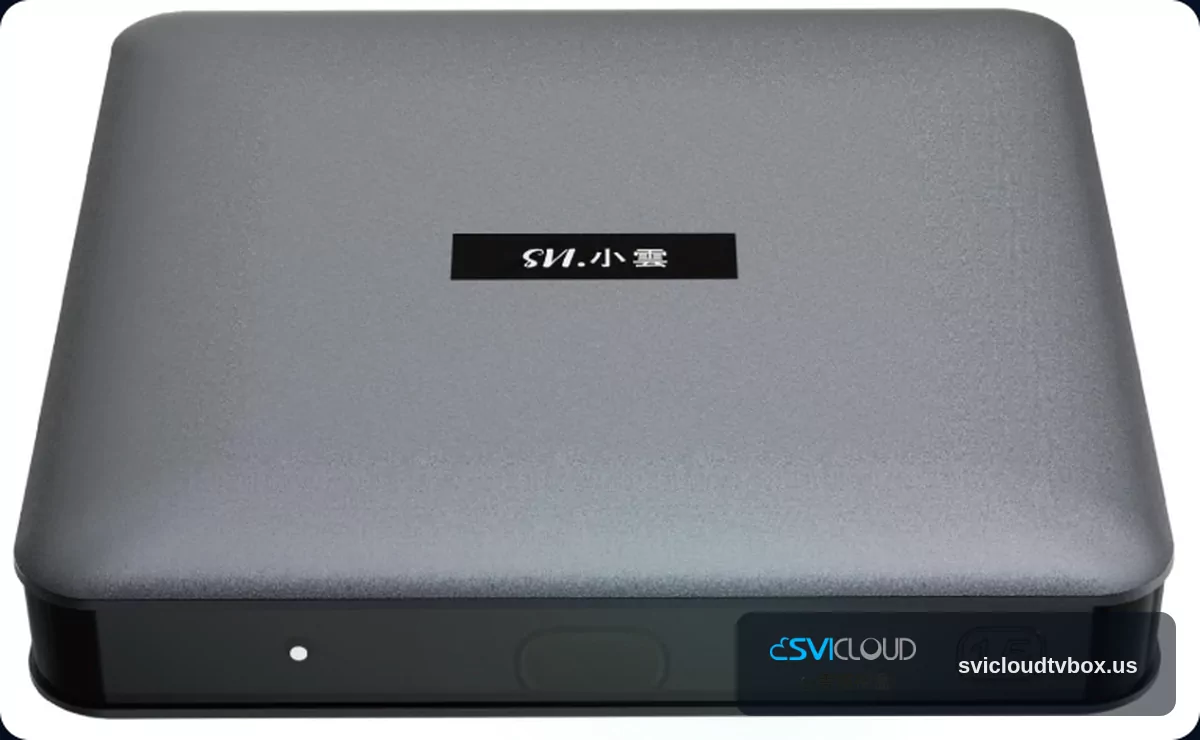
SVICLOUD 15P Wi‑Fi 6 Connected but Won’t Play: Step-by-Step Troubleshooting Guide
Many users run into this situation: SVICLOUD 15P clearly shows that it is connected to Wi‑Fi 6, but after opening an app, it still won’t play, keeps buffering, shows a black screen, or stops after starting.
Don’t rush to conclude that the device is faulty. More often, the cause is usually one of the following:
- Router or network environment settings
- An unsuitable 2.4 GHz / 5 GHz band selection
- Wi‑Fi is connected, but the actual network is unstable
- RJ45 wired and wireless test results differ
- System time or time zone is incorrect
- A single app is malfunctioning
This article uses a step-by-step troubleshooting approach to help narrow down the issue and avoid mistaking a network or service problem for a hardware defect.
First: Connected Does Not Mean Playback Will Work
According to the SVICLOUD 15P official product page, the confirmed information for SVICLOUD 15P includes:
- Android 14
- 4 GB DDR3 RAM
- 64 GB eMMC storage
- Dual-band Wi‑Fi 6
- RJ45 wired network
- Bluetooth 5.4
- HDMI 2.1
- 4K HDR
- AV1 hardware decoding
These specifications mean the device has the foundation for connectivity and playback, but whether streaming works smoothly is still affected by home network quality, router settings, time synchronization, and app status.
In other words, a screen that says “Wi‑Fi connected” does not mean:
- The internet is definitely working
- DNS or the gateway is definitely normal
- The current band is definitely stable
- The app service is definitely available
- The system time is definitely correct
So when troubleshooting, the key is not just whether Wi‑Fi is connected, but whether that connection is actually usable for playback.
---
First Identify the Problem Type
Before you start, separate the symptoms first. That will make troubleshooting faster.
Common Situations
You may be experiencing one of the following:
- Content won’t load after entering the app
- Black screen after pressing play
- Endless buffering or spinning
- The video starts but often freezes or stops
- Some apps work normally, while others do not work at all
Comparison Table: What to Check First for Different Symptoms
| Symptom | Priority Check |
|---|---|
| All apps cannot play | Network, router, time settings, system-level issues |
| Only one app cannot play | App version, cache, login status, server-side status |
| Only some content cannot play | Current network stability, source restrictions, service status |
| Can play, but often stutters | Wi‑Fi signal, band selection, router placement, home network load |
If you have already confirmed that only one app has a problem, it is not recommended to reset the entire device right away. It is usually more effective to start with that app.
---
Step 1: Do a Full Restart First
Many “connected but won’t play” issues improve after a full restart. This is usually not a coincidence, but a temporary network negotiation, cache, or background process issue.
Restart the SVICLOUD 15P
Recommended steps:
1. Turn off the SVICLOUD 15P 2. Wait about 30 seconds 3. Turn it back on 4. After booting, do not open too many apps at the same time
Restart the Router and Modem
If the home devices are separate, handle them together:
1. Turn off the router 2. If there is a modem, turn it off as well 3. Wait 30 to 60 seconds 4. Turn on the modem first, then the router 5. After the indicator lights are stable, start the 15P
How to Test After Restarting
Do not start with high-resolution long videos right away. It is better to:
- Open the most frequently used app first
- Check whether the home screen loads normally
- Then play a short video
- After confirming stability, test longer content
If things return to normal after restarting, it usually means the issue is more likely a temporary network or system-state problem, not necessarily a hardware fault.
---
Step 2: Confirm the Network Is Actually Available, Not Just Showing Connected
“Wi‑Fi connected” only means the device has connected to the wireless access point; it does not mean external internet access is working properly.
Cross-Check with Other Devices
First, test the same network with a phone, tablet, or computer:
- Can you open web pages normally?
- Can you play videos smoothly?
- Does it also keep buffering or disconnecting?
- Does the problem only appear at certain times?
If other devices are also unstable, you should address the home network or ISP issue first, rather than suspecting the box itself.
Test the 15P Using a Different Network Source
This step is very important. You can:
- Connect to another Wi‑Fi network
- Temporarily use a phone hotspot for a short test
- First test whether the app can open and play a short video
How to Interpret the Results
This usually suggests the original router settings, Wi‑Fi band, or home wireless environment is more suspicious.
- Works on a phone hotspot, but not on the home Wi‑Fi
The issue may not be limited to the original Wi‑Fi; it could also involve the app, system time, or service status.
- Does not work on the phone hotspot either
Continue checking the band, RJ45 wired connection, app, and time settings.
- Other devices work normally, but the 15P is unstable
---
Step 3: Test 2.4 GHz and 5 GHz Separately
SVICLOUD 15P supports dual-band Wi‑Fi 6. The key point about dual-band is not which one is “always better,” but which one is more stable in your environment.
A Simple Way to Understand the Difference
2.4 GHz
- Usually better wall penetration
- Usually longer range
- More easily affected by interference from nearby devices
5 GHz
- Usually faster
- May have less interference
- More affected by distance and space layout
How to Test in Practice
If your router combines 2.4G and 5G into one Wi‑Fi name, it is recommended to separate them for testing, so it is easier to tell which band has the issue.
Try testing in this order:
- Router is nearby: try 5 GHz first
- More walls or farther distance: try 2.4 GHz first
- If 5 GHz keeps buffering: switch to 2.4 GHz and compare
- If 2.4 GHz is slow: switch to 5 GHz and compare
Common Misunderstandings
- 5 GHz is not always more stable than 2.4 GHz
- 2.4 GHz is not always the best choice for streaming
- More signal bars do not necessarily mean playback will be smooth
If it shows “connected” but playback is still poor, the actual playback result should be the final basis for judgment, not just the signal icon.
---
Step 4: Use RJ45 Wired Networking for Cross-Testing
SVICLOUD 15P is confirmed to support RJ45 wired networking. When changing bands does not help, a wired test is often one of the most effective ways to diagnose the problem.
Why Wired Testing Matters
It helps answer a key question quickly:
Is the issue with Wi‑Fi, or with the network upstream, the app, or the service?
Compared with wireless networking, wired connections usually:
- Are less affected by walls and distance
- Are less affected by wireless interference
- Are better for verifying stability
RJ45 Test Steps
1. Connect the 15P to the router with a network cable 2. After connecting, do not rely on the original Wi‑Fi test at the same time 3. Restart the device once 4. Open the app that could not play before 5. Test a short video first, then longer content
How to Interpret the Results
| Test Result | Possible Direction |
|---|---|
| Works on wired but not on wireless | Wi‑Fi signal, band, or router wireless settings are more suspicious |
| Does not work on wired either | Not necessarily hardware; it could be the app, time settings, upstream network, or service status |
| Works on wired but still occasionally stutters | It may be related to upstream network quality, home network load, or server-side status |
If everything works normally after the RJ45 test, it usually means the device itself may not have a hardware fault, and the original wireless environment is more likely what needs adjustment.
---
Step 5: Check the System Time, Date, and Time Zone
This step is often overlooked, but it is actually very important. Some apps or services depend on system time for authentication or connection.
If the time or time zone is incorrect, you may see:
- App login failure
- Content loading failure
- Black screen
- It looks like there is internet, but content cannot play
Items to Check
Please confirm:
- Whether the date is correct
- Whether the time is correct
- Whether the time zone is correct
- Whether automatic time or automatic time zone is enabled
Recommended Approach
- Prefer automatic time / automatic time zone
- After correcting it, reopen the app
- If it is still abnormal, restart and test again
If you have already checked the network and the app, but still encounter loading failures, it is worth revisiting this step.
---
Step 6: Determine Whether It Is a Single App Problem
If you find that only one app cannot play, do not focus entirely on Wi‑Fi 6 or the entire device. At that point, you should first suspect the app itself.
Common App-Level Issues
- Temporary app malfunction
- Outdated version
- Abnormal cache data
- Expired login session
- Temporary server maintenance or heavy traffic
What You Can Try First
1. Close the app and reopen it 2. Log out and log back in 3. Test whether other apps work normally 4. Check whether the issue only happens at certain times
Quick Logic for Judgment
- Multiple apps are abnormal: Check the network and system first
- Only one app is abnormal: Check that app first
- Different results at different times: It may be related to the server status
This helps avoid mistaking a service problem for a device hardware problem.
---
Step 7: Check the Router Location and Home Network Environment
If you have already tested restarts, band switching, phone hotspots, and wired networking, but wireless playback still does not feel stable, then you should look back at the home network environment.
Common Influencing Factors
- The router is placed inside a cabinet or behind obstacles
- Too many walls between the router and the box
- Too many surrounding Wi‑Fi signals causing interference
- Multiple people in the home are video calling, downloading, or streaming at the same time
- Overall network quality drops at certain times
Small Adjustments to Try
- Make sure the router is not blocked by enclosed cabinets or metal
- Minimize obstacles between the router and the box
- Test playback at a different time of day
- If possible, move the box closer to the router and test again
If these adjustments help, it usually suggests the problem is closer to the home network environment rather than a device fault.
---
Step 8: When It Is More Reasonable to Suspect Hardware
Most cases of “Wi‑Fi connected but won’t play” are not enough to prove a hardware failure directly. The more reasonable approach is to complete the basic cross-tests first.
Confirm the Following First
Before suspecting hardware, make sure you have at least confirmed:
- The 15P and router have both been restarted
- Other networks or a phone hotspot have been tested
- 2.4 GHz and 5 GHz have been tested separately
- RJ45 wired testing has been done
- The system time is correct
- It is not just a single app issue
When You Should Consider Contacting Support
If all of the above checks have been done and the following still continue, you may want to seek further help:
- No network method can play content
- Wired and wireless are equally abnormal
- Multiple apps have been unusable for a long time
- There is no improvement after restarting, changing networks, and correcting the time
You can first check the SVICLOUD FAQ or use the official contact page for further assistance.
---
A Practical Troubleshooting Order
If you want to handle this in the simplest way, follow this order:
1. Restart the SVICLOUD 15P 2. Restart the router / modem 3. Test whether other devices also have network issues 4. Switch between 2.4 GHz / 5 GHz 5. Cross-test with a phone hotspot 6. Switch to RJ45 wired connection 7. Confirm the time and time zone 8. Determine whether only one app is abnormal 9. Only then decide whether to contact support
The point of this order is: rule out the most common and easiest-to-fix problems first, then deal with less common factors.
---
What Matters Most About SVICLOUD 15P in This Kind of Troubleshooting
Based on the confirmed information, what is most useful for troubleshooting about SVICLOUD 15P is not just the words “Wi‑Fi 6,” but that it also includes:
- Dual-band Wi‑Fi 6
- RJ45 wired networking
- Android 14
The most practical part is that both dual-band wireless and wired networking can be tested. This lets you more effectively determine whether the issue is:
- A Wi‑Fi environment problem
- A problem with the home network upstream
- Or a single app or service issue
If you need to verify product information, please use the SVICLOUD 15P official product page as the reference.
---
Conclusion: Rule Out Network and App Issues Before Thinking About Hardware
When SVICLOUD 15P Wi‑Fi 6 is connected but won’t play, the most important thing is not to immediately conclude that the device is faulty, but to troubleshoot in order:
- Restart first
- Then confirm whether the actual network is usable
- Test 2.4 GHz / 5 GHz
- Cross-check with a phone hotspot
- Switch to RJ45 wired connection
- Check the time and time zone
- Confirm whether it is only a single app issue
In most cases, this will narrow the issue down to the home network, router settings, app status, or service layer, avoiding the mistake of treating a fixable connection problem as a hardware defect.
If you want to investigate further, start with these official pages:
The two most worthwhile first actions are: testing with a phone hotspot and testing with RJ45 wired connection. Once you do those two steps, you can usually determine more quickly whether the issue is with the home Wi‑Fi or with the upstream network or app.